

What is Debugging in JavasScript ?
Using Browser DevTools
Browser Developer Tools are essential instruments for web developers, providing powerful capabilities for debugging, testing, and optimizing web applications. Every modern browser includes these built-in tools that help developers inspect code, monitor performance, and troubleshoot issues efficiently.
Opening DevTools
Accessing developer tools is straightforward across all major browsers. You can open them by pressing F12 on Windows or Linux, or Command + Option + I on Mac. Alternatively, right-click anywhere on a webpage and select "Inspect" or "Inspect Element" from the context menu.
The Console Tab
The Console serves as your primary communication channel with the browser's JavaScript engine. It displays error messages, warnings, and logs from your code execution.
let name = "John";
let age = 20;

console.log(name);
console.log(age);
What You See in the Console
John
20
Simple Error Example
console.log(total);
Console Output
This error appears when JavaScript cannot find a variable that has not been declared or initialized.
ReferenceError: total is not defined
The Elements Panel
The Elements or Inspector panel reveals the complete HTML structure of your webpage and allows real-time manipulation of the DOM. You can click any element to view its HTML markup, CSS styles, computed properties, and box model dimensions.
Example - Inspecting and Modifying Elements:
// In the Console, you can manipulate selected elements
// After selecting an element in the Elements panel, $0 refers to it
$0.style.backgroundColor = 'red';
$0.classList.add('highlight');

// Query and modify elements directly
document.querySelector('.header').style.display = 'none';
Practical Use Case
When your button isn't centered properly, use the Elements panel to:
- Inspect the button element
- Check applied CSS styles
- Identify margin, padding, or flexbox issues
- Test CSS changes in real time
The Network Tab
The Network panel monitors all HTTP requests made by your webpage. Each request displays timing information, status codes, headers, response bodies, and size metrics.
// Make an API request
fetch('https://api.example.com/users/1')
  .then(response => response.json())
  .then(data => console.log(data))
.catch(error => console.error('API Error:', error));The Sources/Debugger Panel
The Sources panel provides comprehensive debugging capabilities for JavaScript code. You can set breakpoints on specific lines, which pause code execution.
Example - Using Breakpoints:
function calculateTotal(items) {
  let total = 0;

  for (let item of items) {
    // Set a breakpoint on the next line to inspect each item
    total += item.price * item.quantity;
  }

  return total;
}

const cart = [
  { name: 'Apple', price: 2, quantity: 3 },
  { name: 'Banana', price: 1, quantity: 5 }
];

console.log(calculateTotal(cart));
Debugging Steps
- Open the Sources panel in Developer Tools
- Find your JavaScript file
- Click the line number to set a breakpoint
- Refresh the page
-
When the code pauses:
- Hover over variables to see their values
- Use Step Over (F10) to move to the next line
- Use Step Into (F11) to enter function calls
The Application/Storage Tab
// Save data to localStorage
localStorage.setItem("username", "John");

// Read data from localStorage
console.log(localStorage.getItem("username"));
Console Output
John
- Open Developer Tools
- Go to the Application tab
- Click Local Storage
- Select your website
- You will see:
- Key: username
- Value: John
Common Errors and How to Fix Them
Syntax Errors
Syntax errors occur when your code violates JavaScript's grammatical rules, preventing the script from executing at all.
Example 1 - Missing Closing Bracket:
// WRONG - Missing closing brace
function greet(name) {
  console.log('Hello, ' + name);
// Missing }

// CORRECT
function greet(name) {
  console.log('Hello, ' + name);
}
Example 2 - Missing Quotes:
// WRONG - Unclosed string
const message = 'Hello World;

// CORRECT
const message = 'Hello World';
Example 3 - Mismatched Brackets:
// WRONG - Using wrong bracket type
const numbers = [1, 2, 3};

// CORRECT
const numbers = [1, 2, 3];
How to Fix Syntax Errors in JavaScript
Fixing syntax errors in JavaScript is the first step in debugging. These errors occur when the code structure is incorrect and prevent the program from running. Follow these best practices to quickly identify and resolve syntax issues.
- Use a code editor with syntax highlighting to spot mistakes easily
- Check the line number mentioned in the error message
- Ensure all brackets, parentheses, and quotes are properly closed
- Use automatic code formatting tools to maintain clean structure
Reference Errors
Reference errors happen when you try to access a variable or function that doesn't exist in the current scope.
Example 1 - Typo in Variable Name:
// WRONG
const userName = 'Alice';
console.log(username); // ReferenceError: username is not defined

// CORRECT
const userName = 'Alice';
console.log(userName); // Notice the capital N
Example 2 - Using Variable Before Declaration:
// WRONG
console.log(age); // ReferenceError: Cannot access 'age' before initialization
const age = 25;

// CORRECT
const age = 25;
console.log(age);
Type Errors
Type errors occur when you perform operations on values of incompatible types.
Example 1 - Calling Method on Null/Undefined:
// WRONG
const user = null;
console.log(user.name); // TypeError: Cannot read property 'name' of null

// CORRECT - Check before accessing
const user = null;
if (user) {
  console.log(user.name);
} else {
  console.log('User not found');
}

// CORRECT - Using optional chaining
const user = null;
console.log(user?.name); // Returns undefined instead of error
Example 2 - Treating Non-Function as Function:
// WRONG
const greeting = 'Hello';
greeting(); // TypeError: greeting is not a function

// CORRECT - Check type before calling
const greeting = 'Hello';
if (typeof greeting === 'function') {
  greeting();
} else {
  console.log(greeting);
}
Example 3 - Array Method on Non-Array:
// WRONG
const notAnArray = 'hello';
notAnArray.push('world'); // TypeError: notAnArray.push is not a function

// CORRECT - Ensure it's an array
const myArray = [];
myArray.push('hello');
myArray.push('world');
Logic Errors
Logic errors are bugs where code runs without errors but produces wrong results.
Example 1 - Assignment Instead of Comparison:
// WRONG - Using = instead of ===
let score = 50;
if (score = 100) { // This assigns 100 to score!
  console.log('Perfect score!');
}

// CORRECT
let score = 50;
if (score === 100) {
  console.log('Perfect score!');
}
Example 2- Incorrect Order of Operations:
// WRONG - Missing parentheses
const total = 10 + 5 * 2; // Result: 20 (multiplication first)

// CORRECT - When you want addition first
const total = (10 + 5) * 2; // Result: 30
Asynchronous Errors
Asynchronous code introduces unique challenges because operations don't execute in the order they appear.
// WRONG - No error handling
fetch('https://api.example.com/data')
  .then(response => response.json())
  .then(data => console.log(data));
// If the request fails, error goes unhandled

// CORRECT - With error handling
fetch('https://api.example.com/data')
  .then(response => response.json())
  .then(data => console.log(data))
  .catch(error => console.error('Failed to fetch:', error));
Null and Undefined Errors
Example - Safe Property Access:
// WRONG - Direct access
const data = null;
console.log(data.name); // TypeError

// CORRECT - Option 1: Check first
const data = null;
if (data) {
  console.log(data.name);
}

// CORRECT - Option 2: Optional chaining
const data = null;
console.log(data?.name); // undefined (no error)

// CORRECT - Option 3: Default values
const data = null;
const name = data?.name ?? 'Unknown'; // 'Unknown'
Code Organization and Comments
Well-organized code with appropriate comments enhances maintainability and collaboration.
File and Folder Structure
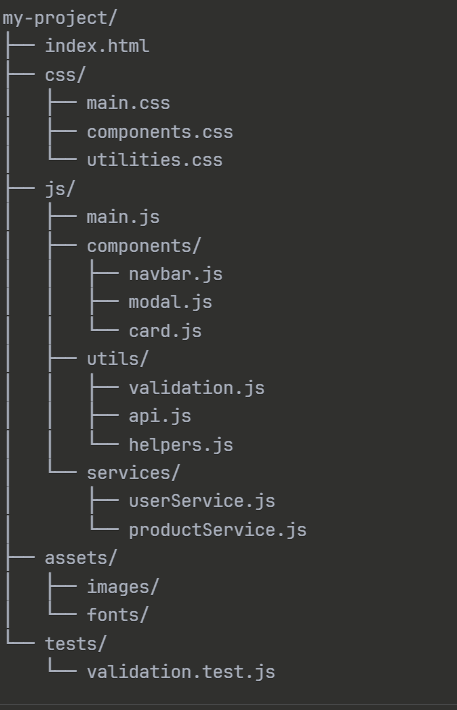
Module Organization
Example - Proper Module Structure:
// userService.js - Focused on user-related operations
export const getUser = async (userId) => {
  const response = await fetch(`/api/users/${userId}`);
  return response.json();
};

export const updateUser = async (userId, userData) => {
  const response = await fetch(`/api/users/${userId}`, {
    method: 'PUT',
    body: JSON.stringify(userData)
  });
  return response.json();
};

export const deleteUser = async (userId) => {
  await fetch(`/api/users/${userId}`, { method: 'DELETE' });
};

// main.js - Using the module
import { getUser, updateUser } from './services/userService.js';

const user = await getUser(123);
console.log(user);
Function Organization
Example - Single Responsibility Functions:
// WRONG - Function doing too much
function processUserAndSendEmail(userData) {
  // Validate
  if (!userData.email) return false;

  // Save to database
  database.save(userData);

  // Send email
  sendEmail(userData.email, 'Welcome!');

  // Log activity
  console.log('User processed');
}

// CORRECT - Separate concerns
function validateUser(userData) {
  return userData.email && userData.name;
}

function saveUser(userData) {
  return database.save(userData);
}

function sendWelcomeEmail(email) {
  return sendEmail(email, 'Welcome!');
}

function logUserActivity(action, userId) {
  console.log(`${action}: User ${userId}`);
}

// Main function orchestrates
async function registerUser(userData) {
  if (!validateUser(userData)) {
    throw new Error('Invalid user data');
  }

  const user = await saveUser(userData);
  await sendWelcomeEmail(user.email);
  logUserActivity('registered', user.id);

  return user;
}
Comment Guidelines
Example - Good vs Bad Comments:
// BAD - Obvious comment
// Increment counter by 1
counter++;

// BAD - Restating code
// Loop through users array
for (let user of users) {
  // Print user name
  console.log(user.name);
}

// GOOD - Explaining WHY
// Using binary search because the array is sorted and contains 10,000+ items
// Linear search would be too slow for this use case
const index = binarySearch(sortedArray, targetValue);

// GOOD - Explaining business logic
// Users under 18 cannot make purchases per legal requirements
if (user.age < 18) {
  throw new Error('User must be 18 or older');
}

// GOOD - Documenting workaround
// Safari doesn't support this API yet, using polyfill
// TODO: Remove this when Safari adds support (check caniuse.com)
if (!window.someAPI) {
  loadPolyfill();
}

// GOOD - Warning about gotchas
// Note: This function modifies the original array
// If you need the original, pass a copy instead
function sortItems(items) {
  return items.sort((a, b) => a.price - b.price);
}
Documentation Comments (JSDoc)
Example - Documenting Functions:
/**
 * Calculates the total price including tax
 * @param {number} price - The base price
 * @param {number} taxRate - Tax rate as decimal (e.g., 0.08 for 8%)
 * @returns {number} The total price with tax included
 * @example
 * calculateTotal(100, 0.08) // Returns 108
 */
function calculateTotal(price, taxRate) {
  return price * (1 + taxRate);
}

/**
 * Fetches user data from the API
 * @param {string} userId - The unique user identifier
 * @returns {Promise<Object>} User object containing name, email, etc.
 * @throws {Error} If user is not found or network fails
 */
async function fetchUser(userId) {
  const response = await fetch(`/api/users/${userId}`);
  if (!response.ok) {
    throw new Error('User not found');
  }
  return response.json();
}
Writing Clean, Readable Code
Clean code minimizes cognitive load, reduces bugs, and accelerates development.
Meaningful Naming Conventions
Example - Descriptive Names:
// BAD - Unclear names
const d = new Date();
const x = u.filter(i => i.a > 18);

function calc(a, b) {
  return a * b * 0.08;
}

// GOOD - Clear, descriptive names
const currentDate = new Date();
const adultUsers = users.filter(user => user.age > 18);

function calculateSalesTax(price, quantity) {
  const TAX_RATE = 0.08;
  return price * quantity * TAX_RATE;
}

// GOOD - Boolean naming
const isLoggedIn = true;
const hasPermission = user.role === 'admin';
const shouldShowModal = !hasSeenWelcome && isFirstVisit;

if (isLoggedIn && hasPermission) {
  // Do something
}
Consistent Formatting
Example - Formatted Code:
// Consistent indentation and spacing
function processOrder(order) {
  // Validate order
  if (!order.items || order.items.length === 0) {
    throw new Error('Order must contain items');
  }

  // Calculate total
  const subtotal = order.items.reduce((sum, item) => {
    return sum + (item.price * item.quantity);
  }, 0);

  const tax = subtotal * 0.08;
  const total = subtotal + tax;

  // Return result
  return {
    subtotal,
    tax,
    total,
    itemCount: order.items.length
  };
}
DRY Principle (Don't Repeat Yourself)
Example - Eliminating Repetition:
// WRONG - Repeated code
function getAdminEmail() {
  const user = getCurrentUser();
  if (user && user.role === 'admin') {
    return user.email;
  }
  return null;
}

function getAdminName() {
  const user = getCurrentUser();
  if (user && user.role === 'admin') {
    return user.name;
  }
  return null;
}

// CORRECT - Extract common logic
function getAdmin() {
  const user = getCurrentUser();
  if (user && user.role === 'admin') {
    return user;
  }
  return null;
}

function getAdminEmail() {
  const admin = getAdmin();
  return admin?.email ?? null;
}

function getAdminName() {
  const admin = getAdmin();
  return admin?.name ?? null;
}
Magic Numbers and Constants
Example - Using Constants:
// WRONG - Magic numbers
if (user.age >= 18 && user.age <= 65) {
  discount = price * 0.1;
}

setTimeout(() => {
  checkStatus();
}, 300000);

// CORRECT - Named constants
const MIN_ADULT_AGE = 18;
const RETIREMENT_AGE = 65;
const ADULT_DISCOUNT_RATE = 0.1;
const STATUS_CHECK_INTERVAL = 5 * 60 * 1000; // 5 minutes in milliseconds

if (user.age >= MIN_ADULT_AGE && user.age <= RETIREMENT_AGE) {
  discount = price * ADULT_DISCOUNT_RATE;
}

setTimeout(() => {
  checkStatus();
}, STATUS_CHECK_INTERVAL);
Destructuring for Clarity
Example - Clean Parameter Handling:
// WRONG - Accessing properties repeatedly
function displayUser(user) {
  console.log(user.name);
  console.log(user.email);
  console.log(user.address.city);
  console.log(user.address.country);
}

// CORRECT - Destructuring
function displayUser(user) {
  const { name, email, address } = user;
  const { city, country } = address;

  console.log(name);
  console.log(email);
  console.log(city);
  console.log(country);
}

// EVEN BETTER - Destructure in parameters
function displayUser({ name, email, address: { city, country } }) {
  console.log(name);
  console.log(email);
  console.log(city);
  console.log(country);
}